
Home Server Client Installation for Windows and MAC
Step 1: Download and install the client application
Windows 7/8: openvpn-install-2.4.7-I607-Win7.exe
Windows 10: openvpn-install-2.4.7-I607-Win10.exe
MAC OS: Tunnelblick_8.0_build_6300.dmg
Step 2: Download your client files from your Home Server
Download the Home Server client files you created during setup of your Home Server.
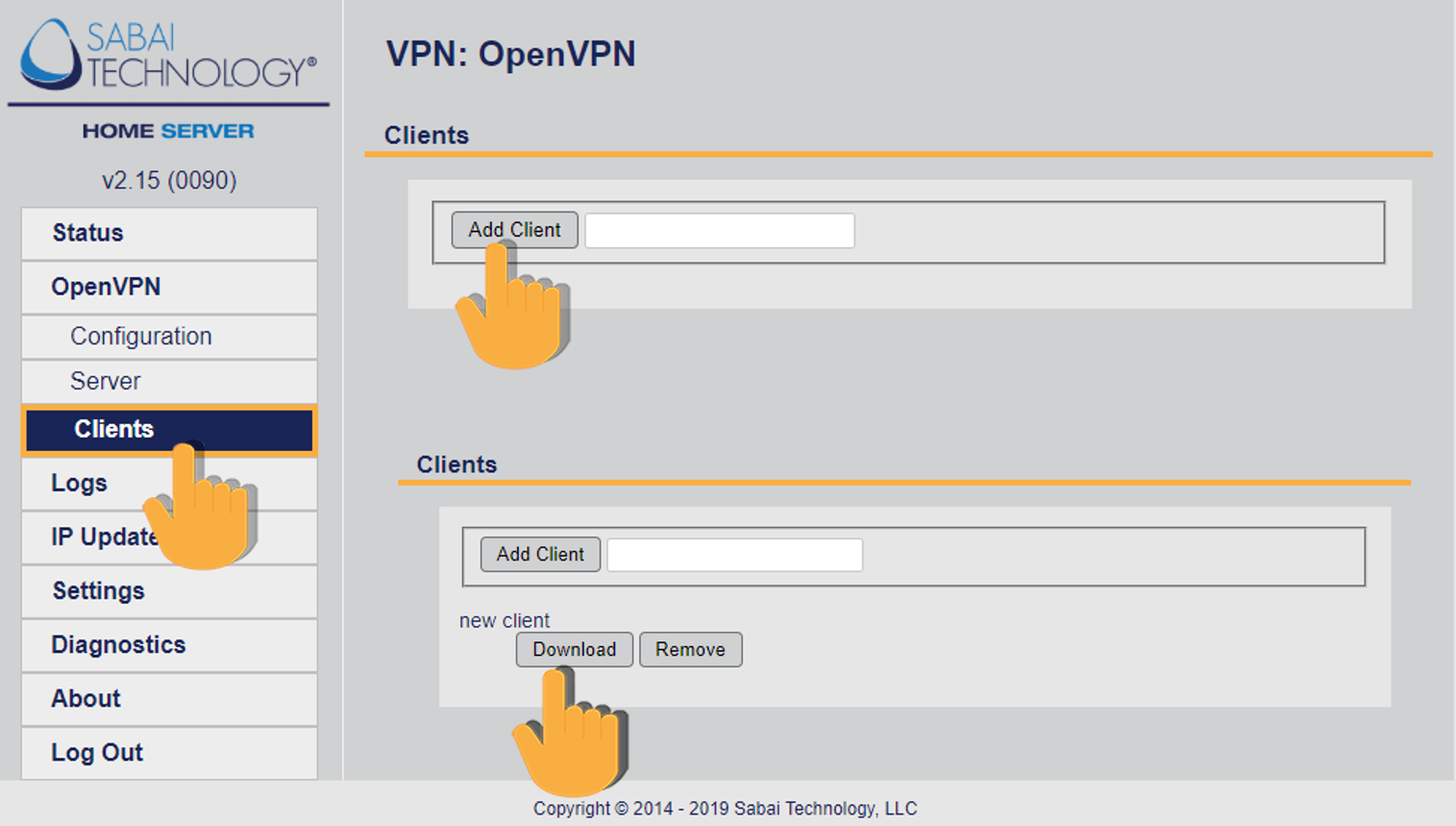
Step 3: Import the client file into OpenVPN or TunnelBlick
Windows: Run the OpenVPN client application. An icon will show in your task bar.

Right click on the icon and click Import File

Find the client file in step 2 and open. The file will install automatically.
MAC: Open the TunnelBlick application.
The icon will show in the top right area of your task bar.

Find your OpenVPN client file and drag it to the TunnelBlick icon.
The file will load automatically.
Step 4: Start your Client
Windows: Right click the OpenVPN icon in the task bar and click Connect. The icon will turn to yellow when it is connecting then to green when it is connected.

MAC: Double click the TunnelBlick icon to start the connection. The icon will go dark when it is connected.

Step 5: You are connected to your Home Server.
Check your location by going to www.tracemyip.org. Your home IP address should be your server location IP.